KidKit — Full User Guide
Everything you need to organize your family's clothes, stay in sync, and spend less time searching.
What is KidKit?
KidKit is a family app for parents and caregivers who want to know where each child's clothes are — at home, daycare, school, or a relative's house.
Instead of texting "Where are Emma's rain boots?", everyone in the family sees the same live list. When someone moves an item in the app, others see it right away on their iPhone or iPad.
- Built for families with children (roughly ages 0–12)
- Works on iPhone and iPad (iOS 15 or later)
- Available in English, Swedish, Norwegian, Danish, Finnish, Spanish, German, and French
- Free to start; optional Premium for larger families
Getting started
You can use KidKit within minutes. No account is required on day one.
1. Download and open the app
- Install KidKit from the App Store on your iPhone or iPad.
- Open the app — it signs you in automatically on this device (Quick Start).
- Optional: add email and password later in Settings to use KidKit on other devices.
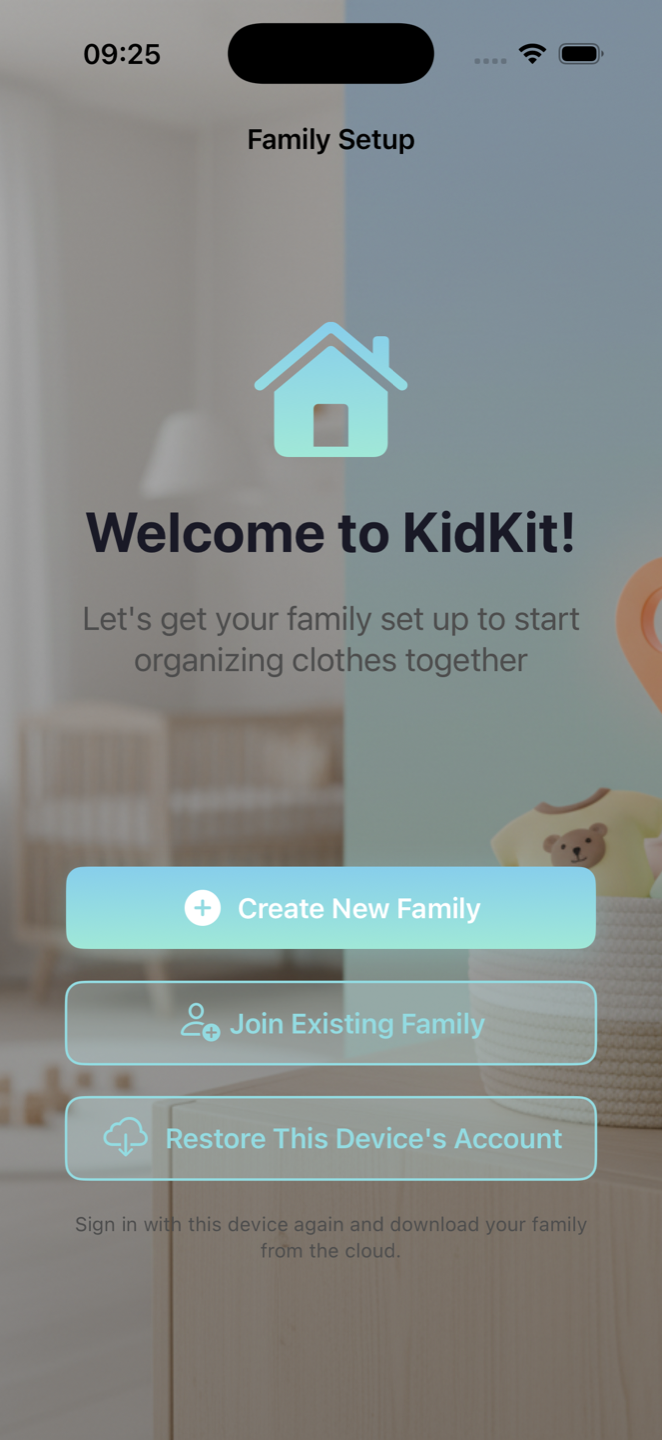
2. Create or join a family
The first time you use KidKit you choose one of two paths:
- Create a family — give your family a name (e.g. "The Anderssons"). You become the first member.
- Join a family — open an invitation link sent by another member, or enter an invite code.
3. Add children
Each child gets their own list of items. Go to Settings → Children → add a name. Free accounts can track one child; Premium allows unlimited children.
4. Create areas
Areas are places where clothes can be — "Home closet", "Daycare", "School bag", "Grandma's". Create them in Settings → Areas or from the main screen. Free accounts include up to 3 areas.
Main screens
After setup, the bottom bar has four tabs.
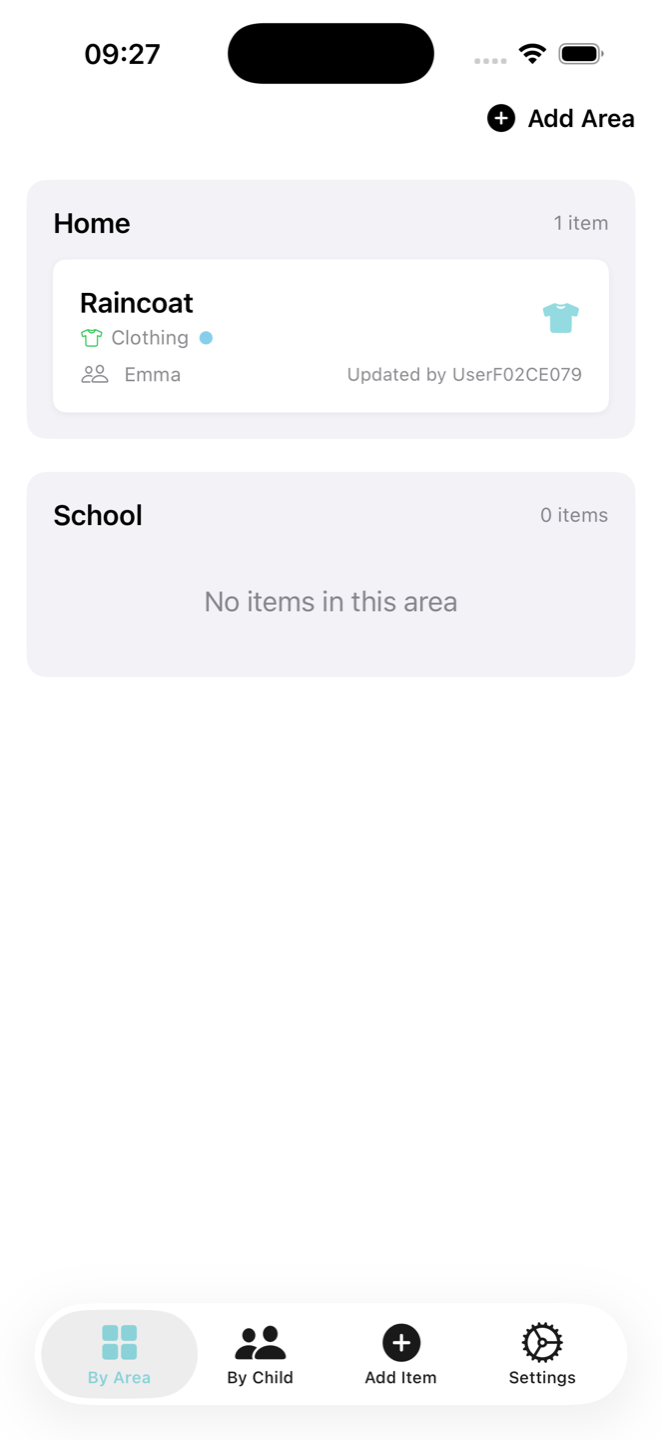
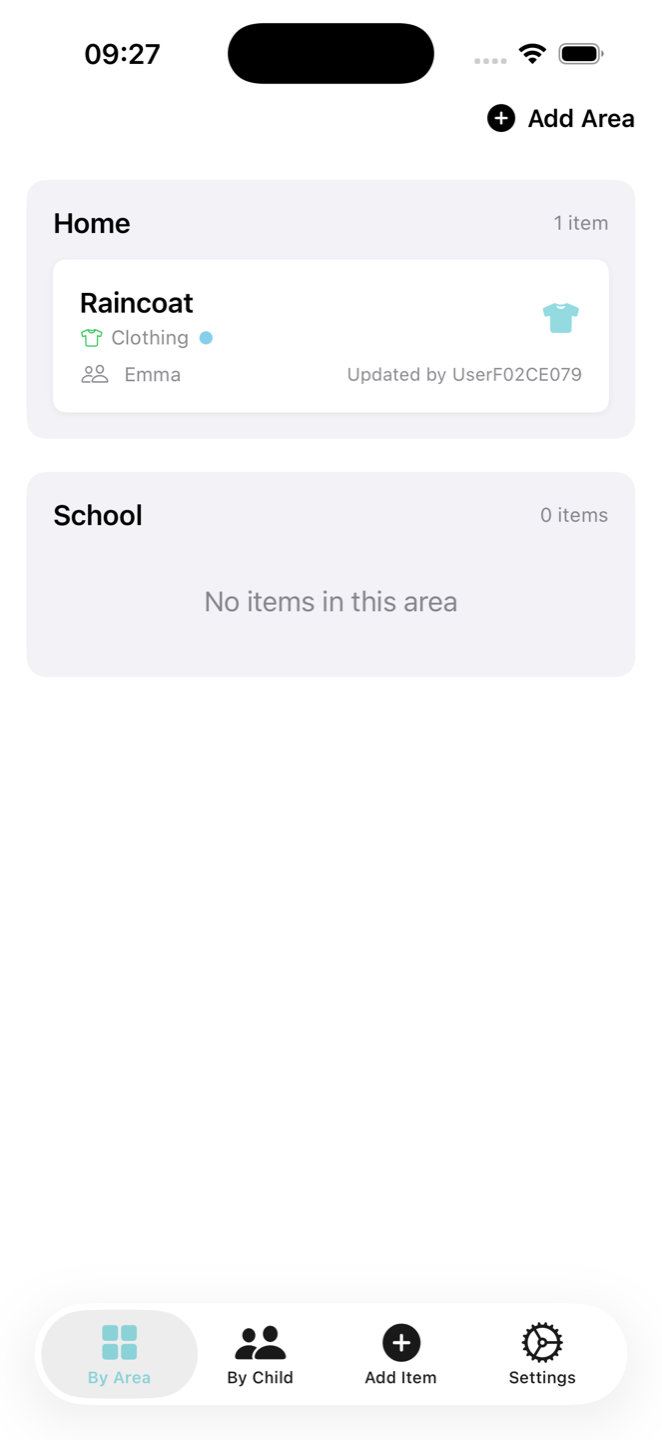
By Area
See every area as a section with the items currently there. This is the main view most families use day to day. Pull down to refresh; use search to find an item by name, child, or area.
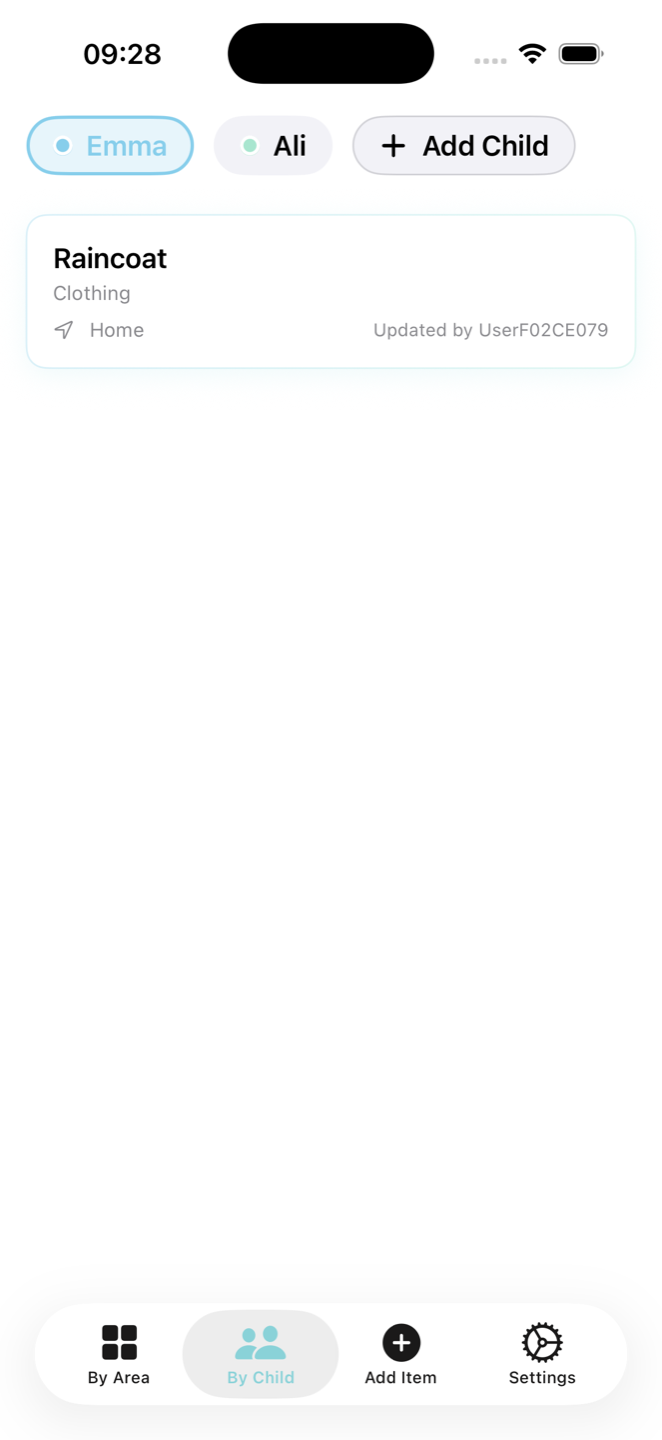
By Child
Pick a child at the top, then see all their items and where each one is. Helpful when packing for one child.
Add Item (+)
Tapping the center + tab opens the add-item form. You need at least one child and one area before you can save an item.
Settings
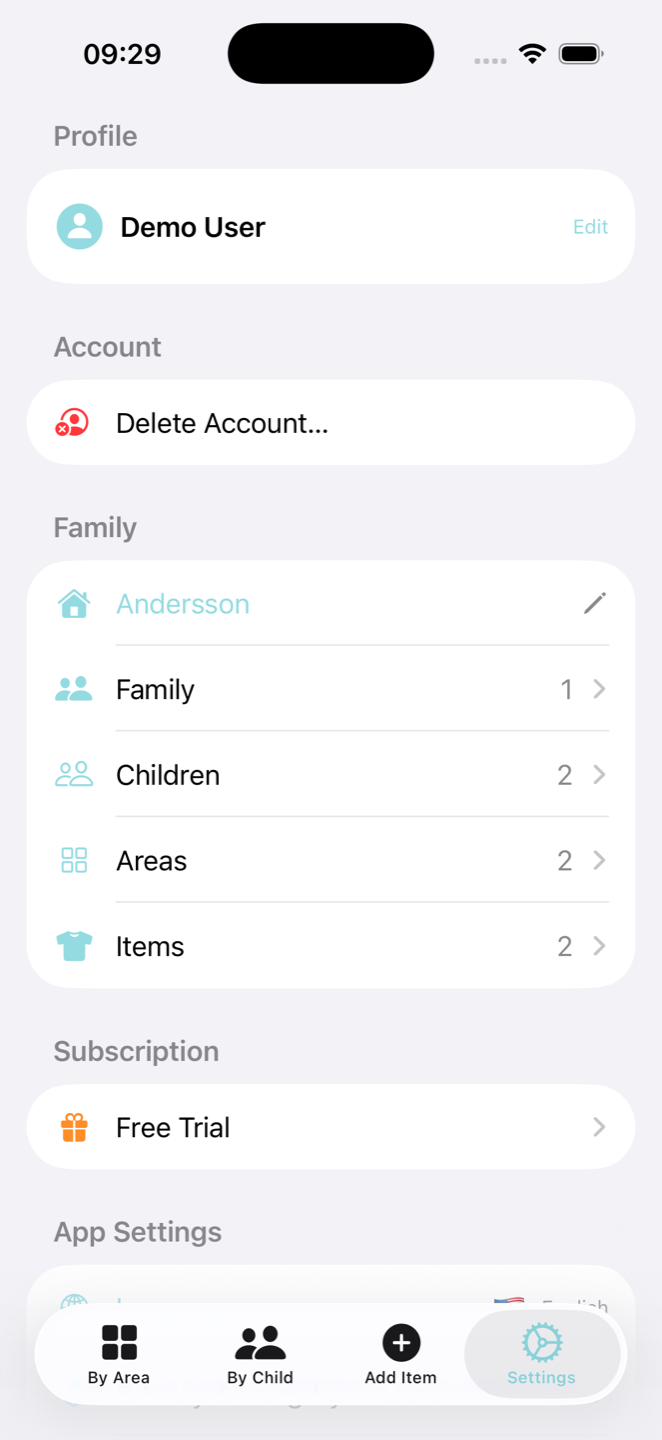
Manage your profile, family, subscription, language, and help options.
Adding and organizing items
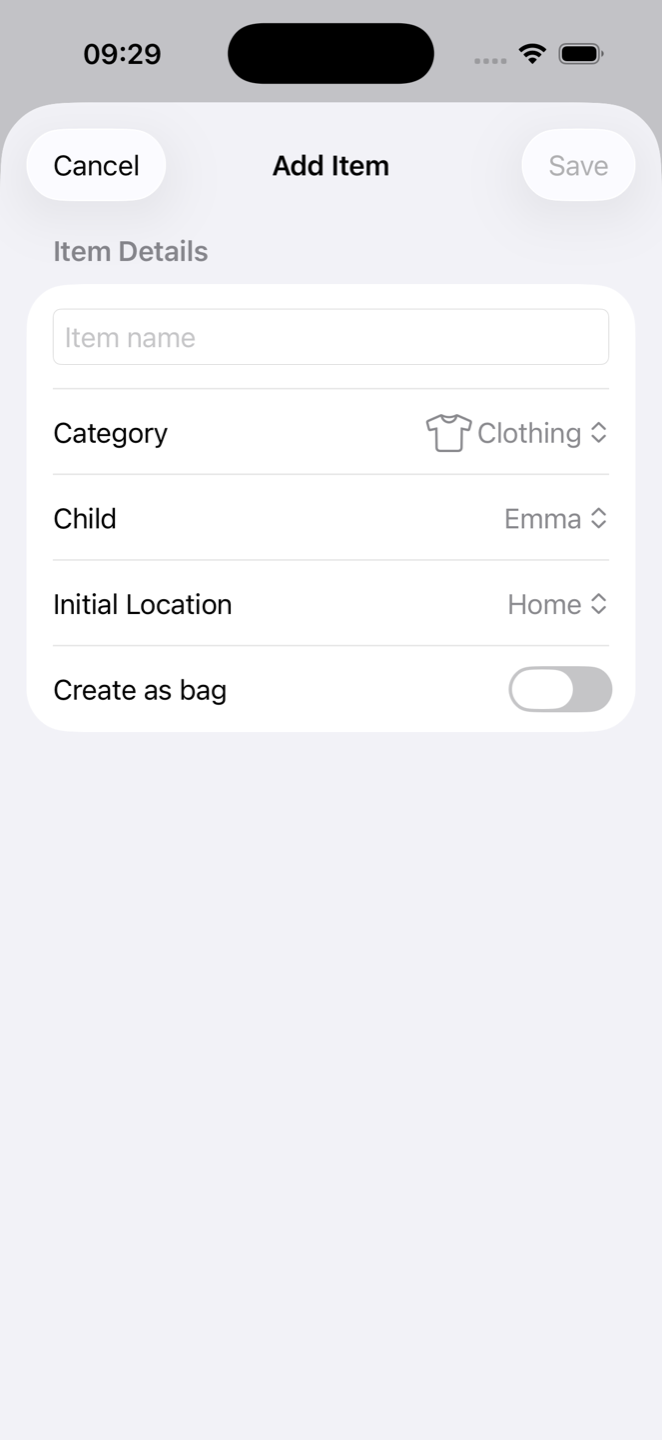
- Tap + (Add Item) or the + button on By Area / By Child.
- Enter a name (e.g. "Red fleece").
- Choose a category (jacket, shoes, etc.) — the app may suggest one from the name.
- Select which child the item belongs to.
- Choose which area it is in right now.
- Optional (Premium): add a photo so everyone recognizes the item.
- Optional: turn on "Create as bag" to make a container (see below).
- Tap Save.
Bags and containers
A bag is a special item that holds other items — like a football bag or daycare backpack. Create it with "Create as bag" when adding an item. Drag loose items onto a bag to pack them; drag the whole bag to another area to move everything at once.
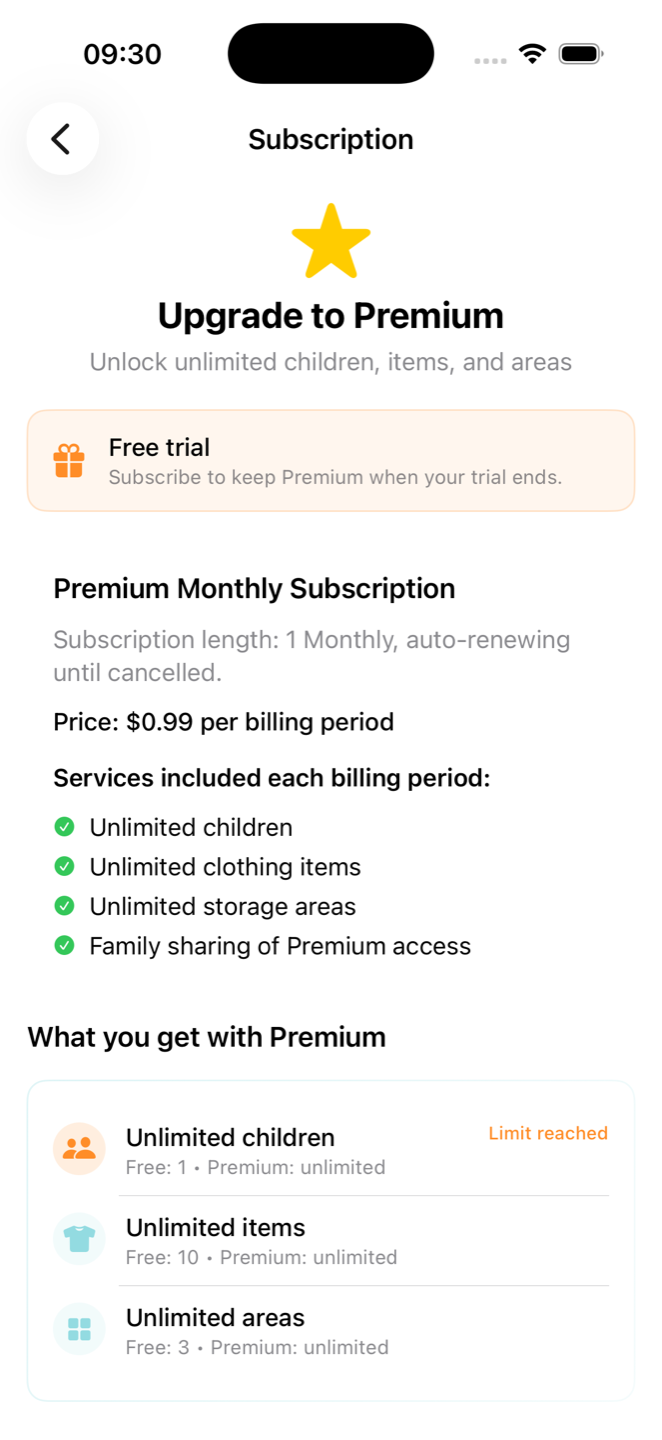
Free tier limits
- 1 child
- 10 clothing items
- 3 areas
If you reach a limit, the app will prompt you to upgrade to Premium for unlimited children, items, and areas.
Moving items between areas
When clothes move between home and daycare, update KidKit so the whole family stays aligned.
- Open the By Area tab.
- Press and hold an item (or bag), then drag it to another area's section.
- Release — the item's location updates for everyone immediately.
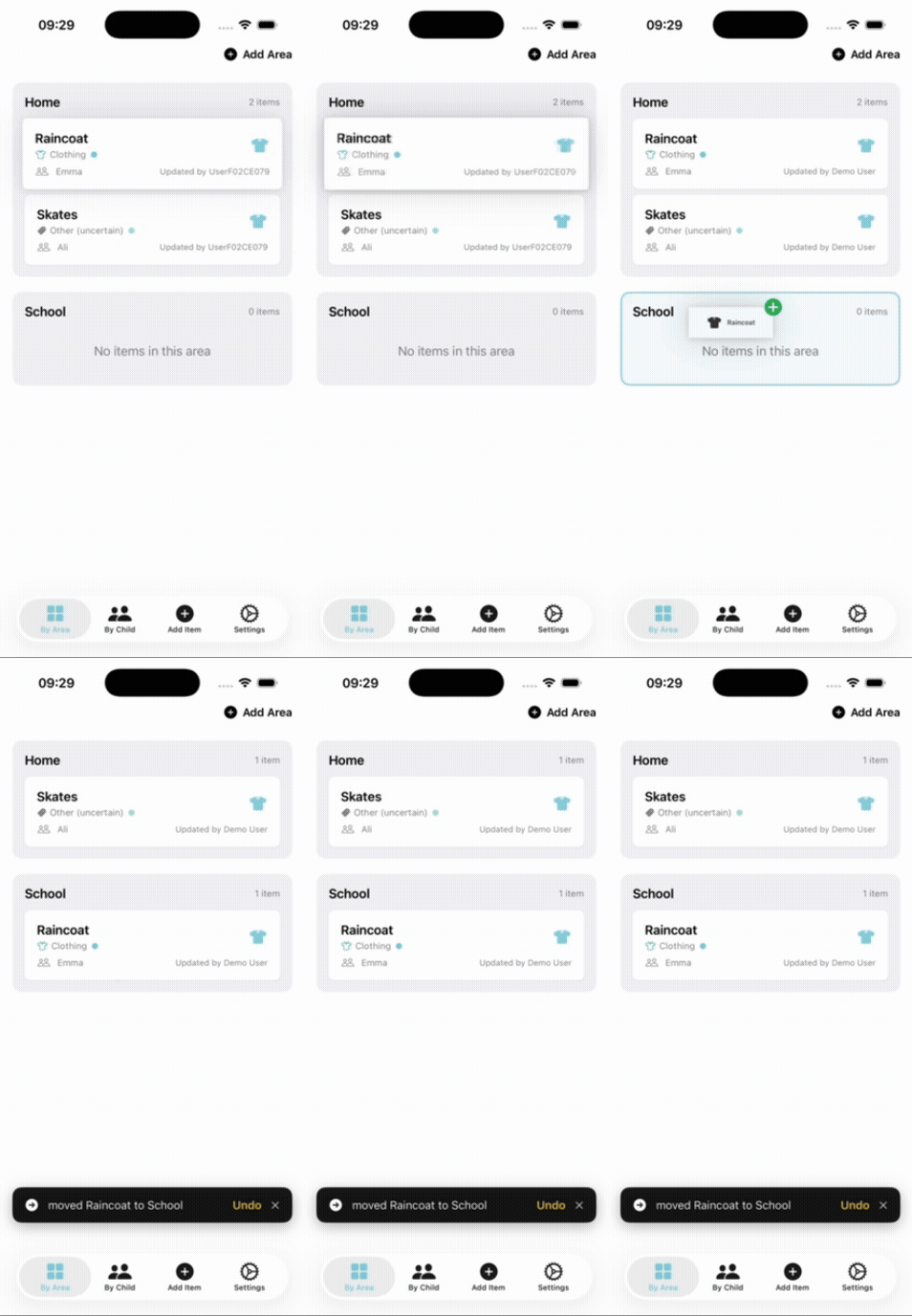
If you move something by mistake, look for an undo message at the bottom of the screen right after the move.
Sharing with your family
Everyone in the same family sees the same children, areas, and items. Changes sync in real time when you have an internet connection.
Invite someone
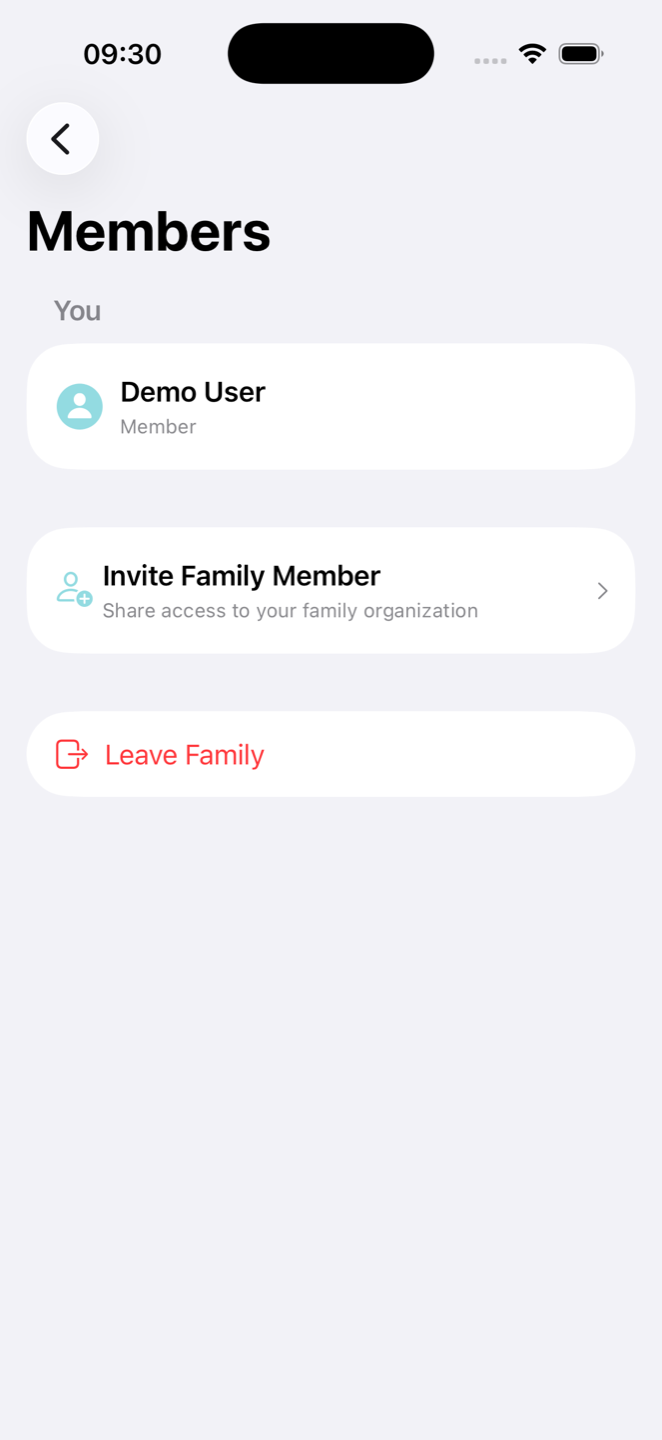
- Go to Settings → Family (members count).
- Tap to invite and share the link (Messages, Mail, etc.).
- The other person opens the link on their iPhone/iPad and joins your family in KidKit.
Leaving or managing members
Members can leave the family from the members screen. The family member who pays for Premium (subscription owner) can remove other members if needed.
Settings explained
Profile
Set your display name. Optionally add email and password so you can sign in on a new device. If email verification is required, follow the link in your inbox or use "I've verified my email" in the profile editor.
Family
- Rename your family
- Family — see members and send invitations
- Children — add, edit, or remove children
- Areas — add, edit, reorder, or remove areas
- Items — full list of items for advanced management
Subscription
Shows Free Trial, Premium, or Expired. Tap to subscribe, restore purchases, or manage your plan in the App Store. Only one person in the family needs Premium — everyone else gets Premium features through the family.
App settings
- Language — choose from 8 supported languages
- Privacy & Integrity — how your data is stored and protected
- About KidKit — version and app information
Support
- Show Tutorial Again — replay the in-app onboarding
- Send Feedback — opens an email to hello@kidkit.cloud with your user ID
Account (when signed in with email)
Delete Account permanently removes your KidKit account. This is separate from leaving a family.
Peace of mind
KidKit is designed to make family life easier — not to buzz your phone all day.
There are no push notifications in KidKit today, and no notifications screen to manage. When you want to check where something is, open the app — your family's lists are there when you need them.
We may add helpful alerts in the future, but we will not spam you. KidKit focuses on organizing your kids' stuff, not interrupting your day.
Tips and troubleshooting
Items look out of date
Pull down on By Area or By Child to refresh. Check that you have internet access. Make sure you are in the correct family if you belong to more than one.
Cannot add more children, items, or areas
You may have reached the free tier limit. Open Settings → Subscription to upgrade to Premium.
New phone or tablet
Before switching devices, add email and password under Profile. On the new device, choose Email & Password on the login screen and sign in. Your family data will sync from the cloud.
Invitation link does not work
Invitations can expire. Ask the family admin to send a new link from Settings → Family. Open the link on the device where KidKit is installed.
Trial ended
You can continue in read-only mode or subscribe to Premium to keep adding and moving items.
Screenshots show the English KidKit iOS app for all languages until localized captures are added.